Add a person to a photo, matched to the light and angle
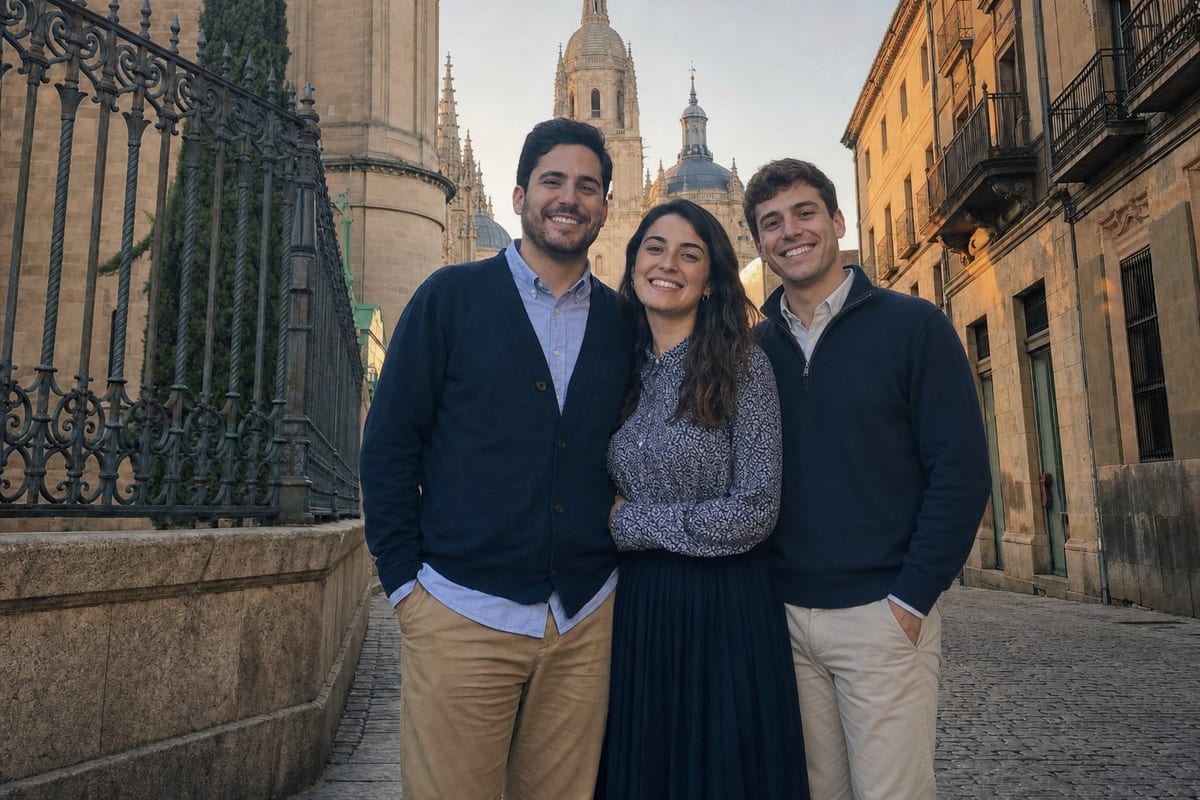
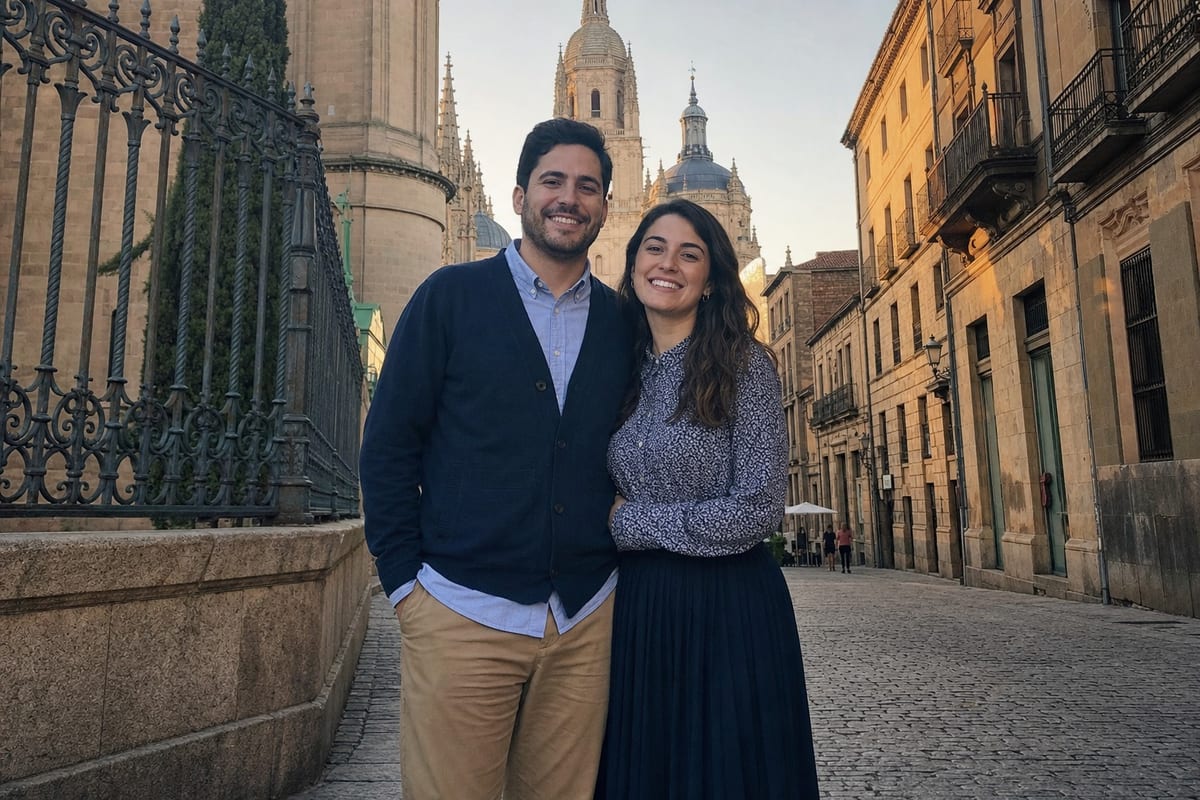
To add a person to a photo with NeedPS, upload the base photo, attach a clear picture of the person you want to add and say where they should go: "add her on the left, next to grandpa". The AI places them in the scene and matches the lighting, scale and angle so they look like they were there.
It fixes the photo everyone has: the person who took the picture and is missing from it, the relative who could not make it to the event, or a family photo you want to complete. The added person is built to stay recognizable from the photo you provide.
Add several people one at a time, using each result as the base for the next. That keeps you in control of where everyone stands.


Last updated: October 7, 2026
See the difference
Drag the slider to compare the same photo before and after. Example photos created by the NeedPS team.
How it works in 3 steps
- 1
Upload the base photo
The photo you want to add someone to.
- 2
Attach a photo of the person
A clear picture of who you are adding, plus where to place them.
- 3
Get the complete photo
They are blended into the scene as if they were there when it was taken.
What you get
- Completes group and family photos
- Light, shadow, angle and scale are matched to the scene
- The added person is built to stay recognizable
- Works for memorial photos and family gifts
Frequently asked questions
How do I add someone to a photo?
In NeedPS, upload the base photo, attach a clear photo of the person and describe where to place them. The app blends them into the lighting and angle of the scene.
Will they look pasted in?
Lighting, shadows, color and scale are adjusted to the existing scene so the person looks like part of the photo. If the first result is not right, adjust the description and run it again.
Does the added person keep their face?
The tool is built to keep the person recognizable from the photo you attach. The clearer that photo, the closer the likeness.
Can I add a person to an old photo?
Yes. For damaged photos, restore the old photo first, then add the person to the restored version.
Can I add more than one person?
Yes. Add them one at a time, using each result as the base for the next, so you control where each person goes.
Is it free to try?
Yes. You can try NeedPS without an account, and signing up adds free edits. Free edits work on every tool. After that you can buy credit packs or choose a plan in the app, priced by your app store in your local currency.
Ready to try it on your own photo?
Download NeedPS, upload a photo and type what you want. Stuck? Real people answer support.