Restore old photos with AI: repair damage, add color, keep every face
To restore an old photo with NeedPS, take a picture of the print with your phone (or use a scan), upload it and choose Restore. The AI repairs scratches, creases, tears and fading, adds natural color to black-and-white pictures and sharpens the detail, while keeping each face true to the person in the original.
That last part matters most. A restored photo of your grandmother should still look like your grandmother, not like an AI guess of her. NeedPS is built to preserve facial features, in single portraits and in group shots.
Once the restoration is done, run the result through the 4K upscaler and it is ready to print, frame or share with the family.


Last updated: October 7, 2026
See the difference
Drag the slider to compare the same photo before and after. Example photos created by the NeedPS team.
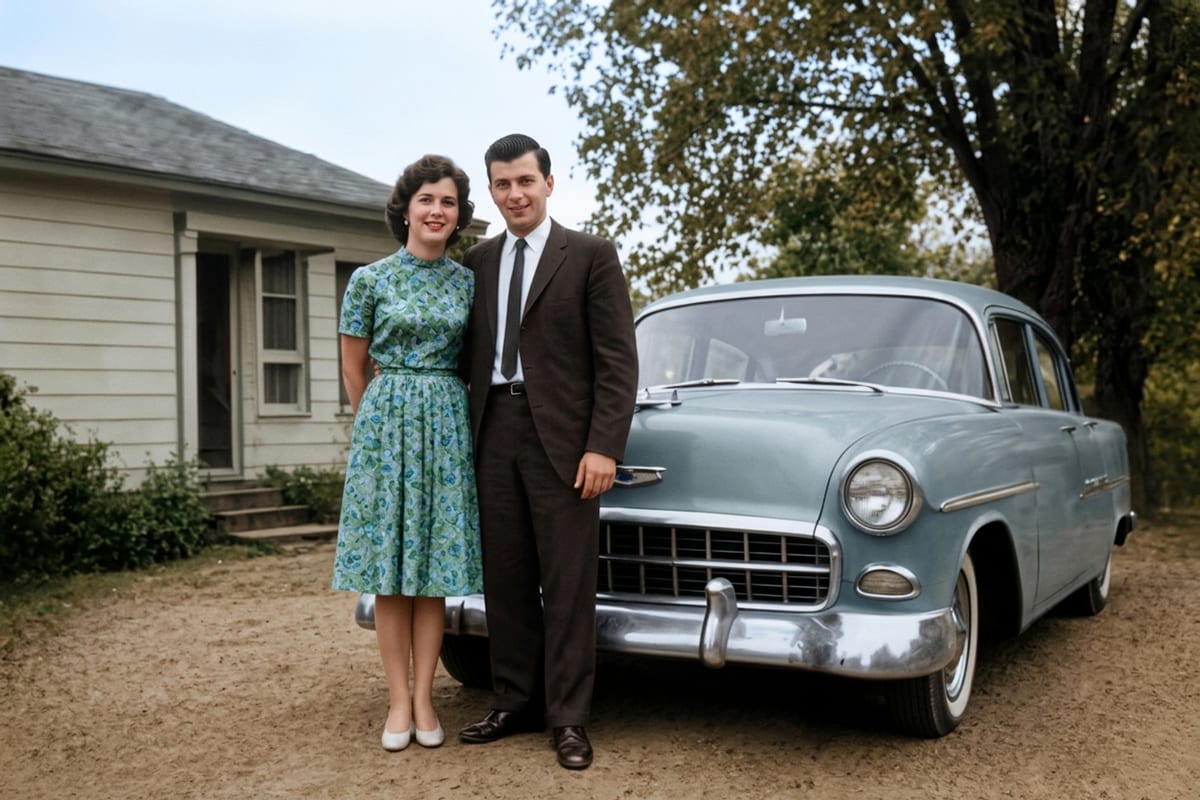
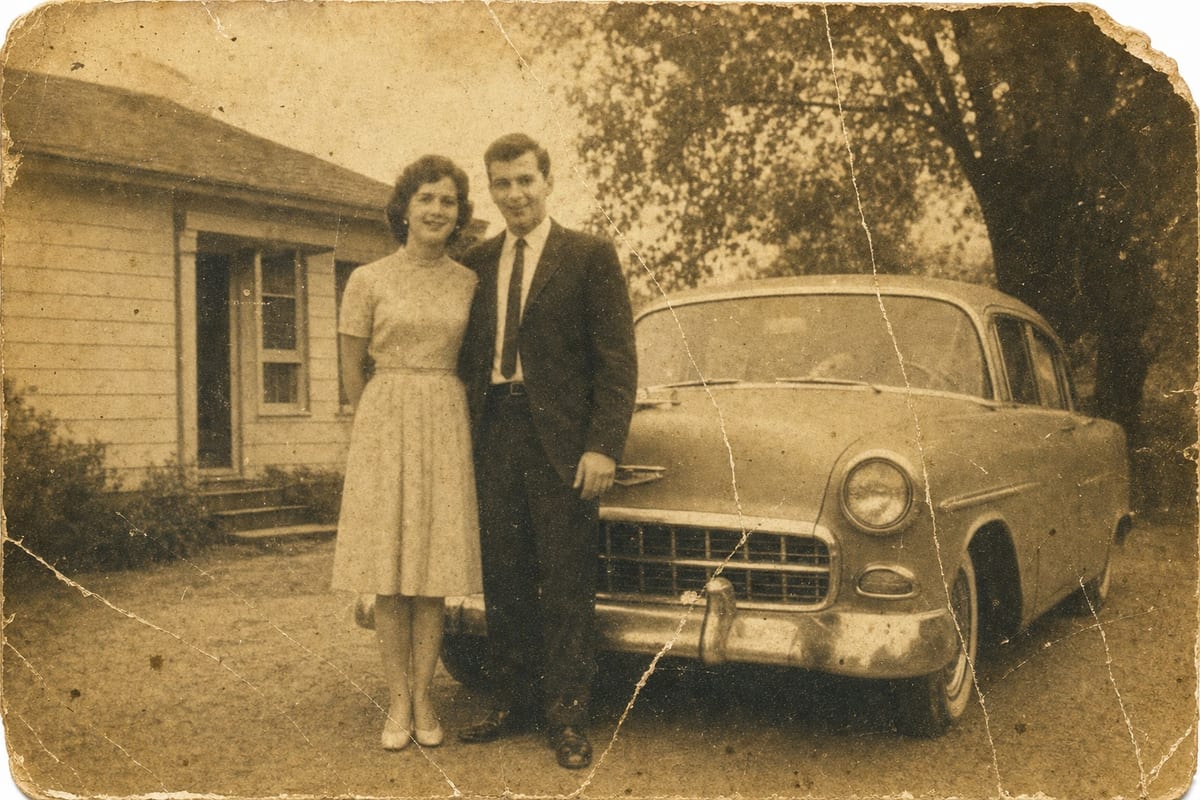
How it works in 3 steps
- 1
Photograph or scan the old print
A simple phone photo of the print works. You do not need a scanner.
- 2
Upload it and choose Restore
Damage, fading and black-and-white are detected and treated automatically.
- 3
Get it back like new
Natural color, more detail, no scratches. Ready to print or share.
What you get
- Repairs scratches, tears, creases, stains and fading
- Natural color for black-and-white photos
- Built to keep faces true to the original person
- More detail, even from low-resolution scans
- A gift that lands: parents' childhood photos, grandparents' wedding
Frequently asked questions
How do I restore an old photo with AI?
Photograph or scan the print, upload it to NeedPS and choose Restore. The app repairs scratches and fading, adds color to black-and-white photos and sharpens the detail. No editing software or skills needed.
Will the faces still look like the real people?
That is what the tool is built for: it works to preserve each person's facial features, including in group photos. AI results can vary, so if a face does not look right, run it again.
Can it colorize black-and-white photos?
Yes. Restore adds natural color to skin, clothing, sky and background based on what is in the photo. The colors are an educated estimate, not a record of the original colors.
My photo is torn and part of it is missing. Can it be fixed?
Scratches, creases, stains and small tears are repaired. Restore refreshes what is in the photo and does not invent what is gone, so a large missing piece stays soft rather than being made up. To fill a big missing area, open the result in General change and describe what should be there.
Do I need a scanner?
No. A clear phone photo of the print, taken flat and without glare, works well.
What resolution do I get?
The result comes back in high resolution. For large prints, run it through the 4K upscaler as well.
Is it free to try?
Yes. You can try NeedPS without an account, and signing up adds free edits. Free edits work on every tool. After that you can buy credit packs or choose a plan in the app, priced by your app store in your local currency.
Ready to try it on your own photo?
Download NeedPS, upload a photo and type what you want. Stuck? Real people answer support.