Remove unwanted objects from photos by describing them
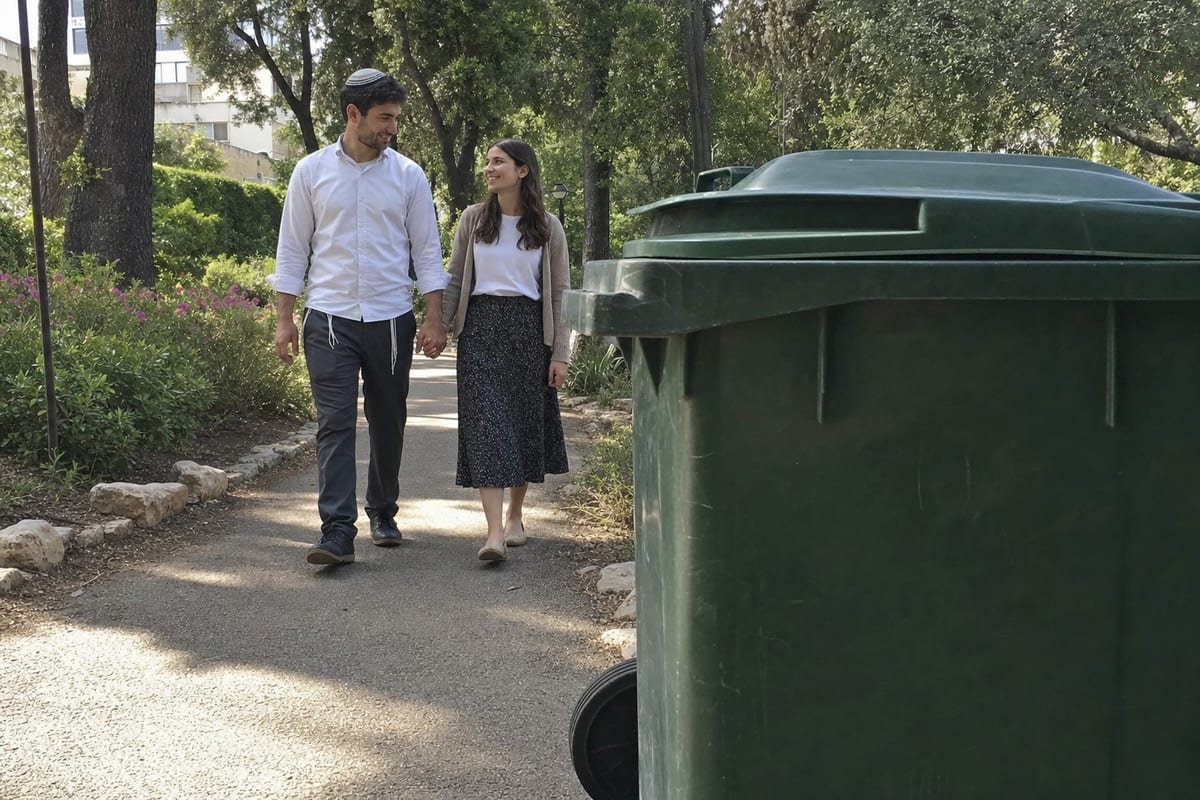
To remove an object from a photo with NeedPS, upload the picture and describe what should disappear: "remove the orange trash can in the corner" or "erase the power lines across the sky". The AI removes it and fills the gap with what should be behind it, so the photo looks as if it was taken without it.
You do not need to paint a precise mask. A clear description is usually enough, and you can remove several things in one request or clean the photo up step by step.
It works on clutter and on text: a sign, a logo, a burned-in date stamp or a caption on your own photo.


Last updated: October 7, 2026
See the difference
Drag the slider to compare the same photo before and after. Example photos created by the NeedPS team.

How it works in 3 steps
- 1
Upload the photo
A phone photo, a scan or any image file.
- 2
Describe what to remove
"The sign above the door", "the white car in the background", "the stain on the shirt".
- 3
Get a clean photo
The object is gone and the background is filled in. Keep going and clean up more in the same photo.
What you get
- Clears trash cans, signs, wires, parked cars, shadows and stains
- The background is filled in to match the scene
- Chain several removals on the same photo
- Useful for travel, product and real estate photos
Frequently asked questions
How do I remove an object from a photo?
Upload the photo to NeedPS and type what to remove, for example "the trash can on the left". The app removes the object and fills in the background behind it.
Do I have to select the object myself?
Not usually. In most cases a description is enough and NeedPS finds the object in the photo. The more precise the description, the more precise the result.
Can it remove text, a logo or a date stamp?
Yes, on your own photos. Ask it to remove a caption, a logo, a sign or a burned-in date, and the area behind it is rebuilt.
Can I remove several objects at once?
Yes. Describe several items in one request ("remove the trash can and the sign") or remove them in rounds, using each result as the base for the next.
What is the difference between removing an object and removing a person?
The idea is the same: describe what should go and the background is rebuilt. The only difference is what you ask for, so a dedicated person tool is there for people and this one for everything else.
Is it free to try?
Yes. You can try NeedPS without an account, and signing up adds free edits. Free edits work on every tool. After that you can buy credit packs or choose a plan in the app, priced by your app store in your local currency.
Ready to try it on your own photo?
Download NeedPS, upload a photo and type what you want. Stuck? Real people answer support.